
How to translate manhwa on iPhone — right inside the speech bubbles

The scanlation you were following stopped at chapter 54, and the raw is already at 120. You can read Korean well enough to follow the art, not the dialogue. This guide shows how to read those raw chapters in English on an iPhone, with the translation written into the speech bubbles instead of in a list under the page.
What you need
- An iPhone or iPad on iOS 18 or later. Translation inside the page uses Apple’s built-in translation, which arrived in iOS 18.
- Mieru, a free browser for comics. No account, no coins.
- The site where you already read the raw. Mieru doesn’t come with comics; it works on the pages you open.
Step 1 — Open the chapter in Mieru
Type the site’s address into Mieru’s address bar, or open it from your bookmarks, and go to the chapter. Mieru’s ad blocker is on from the first launch, so the pop-ups and redirects these sites are known for are already gone.
When the page is a chapter, a small Chapter detected bar appears at the bottom.
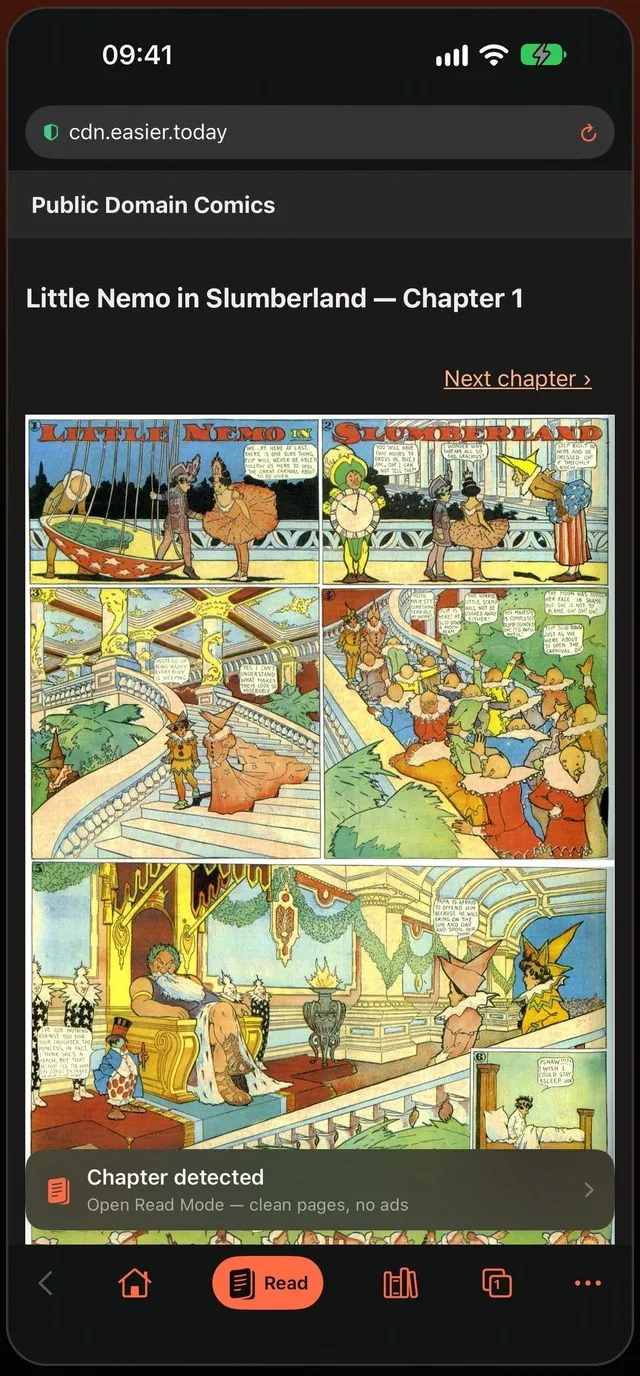
Step 2 — Tap Read
Tap Read. The chapter’s pages leave the website and open in Mieru’s own reader. For manhwa that is a vertical strip, like the webtoon apps you know; Mieru picks it from the site and the language.
Step 3 — Choose how to translate
The first time you open a chapter in a language that isn’t yours, Mieru asks once how you want it:
- Translate automatically — the whole chapter is translated ahead of you, starting with the page on screen. This is the one to pick for raws.
- Only when I tap — the page stays as it is, and tapping a bubble shows its translation.
- Don’t translate.
Your answer is remembered for that site, so the next chapter opens the same way.
Step 4 — Read
Each speech bubble is found on the page, the Korean text is read, and the English translation is written back into the same bubble. The new lettering is sized and weighted to follow the original, and only the text area is painted over, so the bubble keeps its shape.

A progress pill shows how many pages of the chapter are done. When you are most of the way through, the first pages of the next chapter are prepared too.
The first time you translate Korean into English, iOS may ask to download the language. Accept once; after that it works offline, even on downloaded chapters.
Keep names consistent with a glossary
Machine translation loves to spell a character’s name three different ways. Tap a bubble to see the original next to the translation, then fix the name. It goes into that series’ glossary and every later page uses your spelling.
Translate the rest of the site too
Series descriptions and chapter lists on raw sites are in Korean as well. When a page isn’t in your language, a translate button appears in the address bar; tap it to translate the page’s text, or choose Always translate Korean.
If something doesn’t work
- A page says “Not translated”. The image didn’t load, or the language isn’t downloaded yet. Tap the page to retry — Mieru also retries failed pages twice on its own.
- The source language is wrong. Set “Translate from” once for that site.
- Read doesn’t appear on a site. Write to [email protected] with the address; site support is updated without an app update.
Which languages work
| From | Into |
|---|---|
| Korean (manhwa) | English, Vietnamese, Spanish, and the other languages Apple’s translation supports |
| Japanese (manga), including vertical text | the same |
| Chinese (manhua), Simplified and Traditional | the same |
| English | any of the above |
Mieru works out the language of each site from the page itself. On sites that mix languages, set “Translate from” once for that site.
Why the translation goes in the bubble
Reading a list of translated lines under a page means matching each line to a bubble yourself, and losing the art while you do. Writing the translation into the bubble keeps your eyes on the panel: who is talking is where the bubble points, and a shout still looks like a shout. Mieru paints over only the text area, not the whole bubble, so bubble shapes, tails and screentone backgrounds stay as drawn.
Is my reading sent anywhere?
No. Detection, text recognition and translation all run on the iPhone. The pages you read are not uploaded to translate them, and you don’t need an account. The only downloads involved are the language packs Apple provides and, for Japanese, a one-time text reader.
Translate in the bubbles — Korean, Japanese and Chinese, on your iPhone.
 Coming soon to the App Store