
A manga and webtoon reader for the sites you already read
Tap Read on any chapter page and Mieru turns it into a clean, fast reader: vertical scroll for webtoons, right to left for manga, with the next pages already loaded.
 Coming soon to the App Store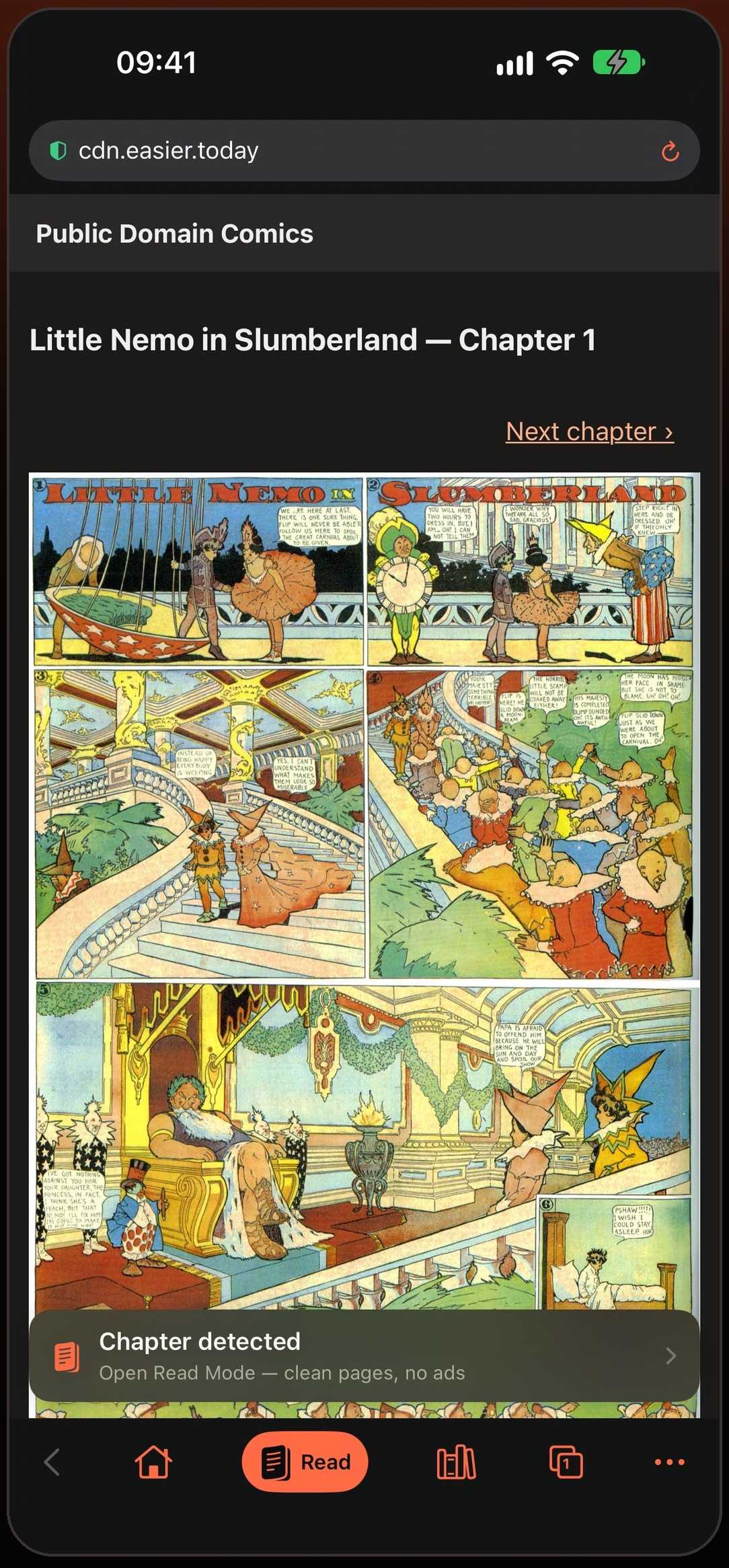
From a cluttered site to a clean page in one tap
Keep reading on the sites you already use. When Mieru sees a chapter page it shows a small “Chapter detected” bar. Tap Read and the pages move out of the website into a native reader: no menus, no comment boxes, no ads, only the comic.
Mieru recognizes most chapter pages on its own, and support for tricky sites arrives in small updates that don’t need a new version of the app.
The right layout for what you are reading
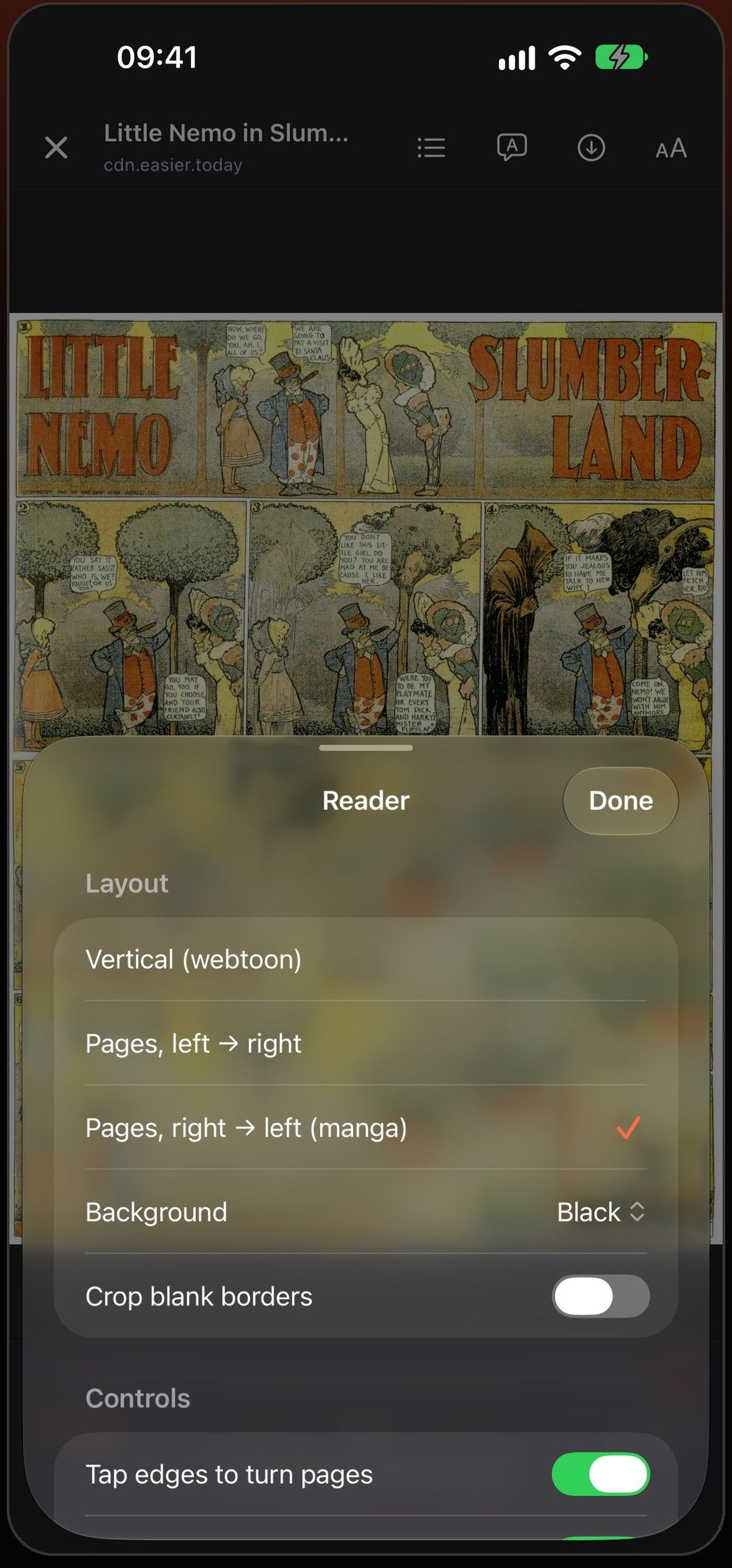
Vertical scroll for webtoon-style manhwa and manhua, pages left to right for western comics, and pages right to left for manga. Mieru picks the likely layout from the site and the language of the series, so Japanese manga opens right to left without you touching a setting.
Change it once and turn on “Remember” for that site; every series there opens the same way.
The next page is already there
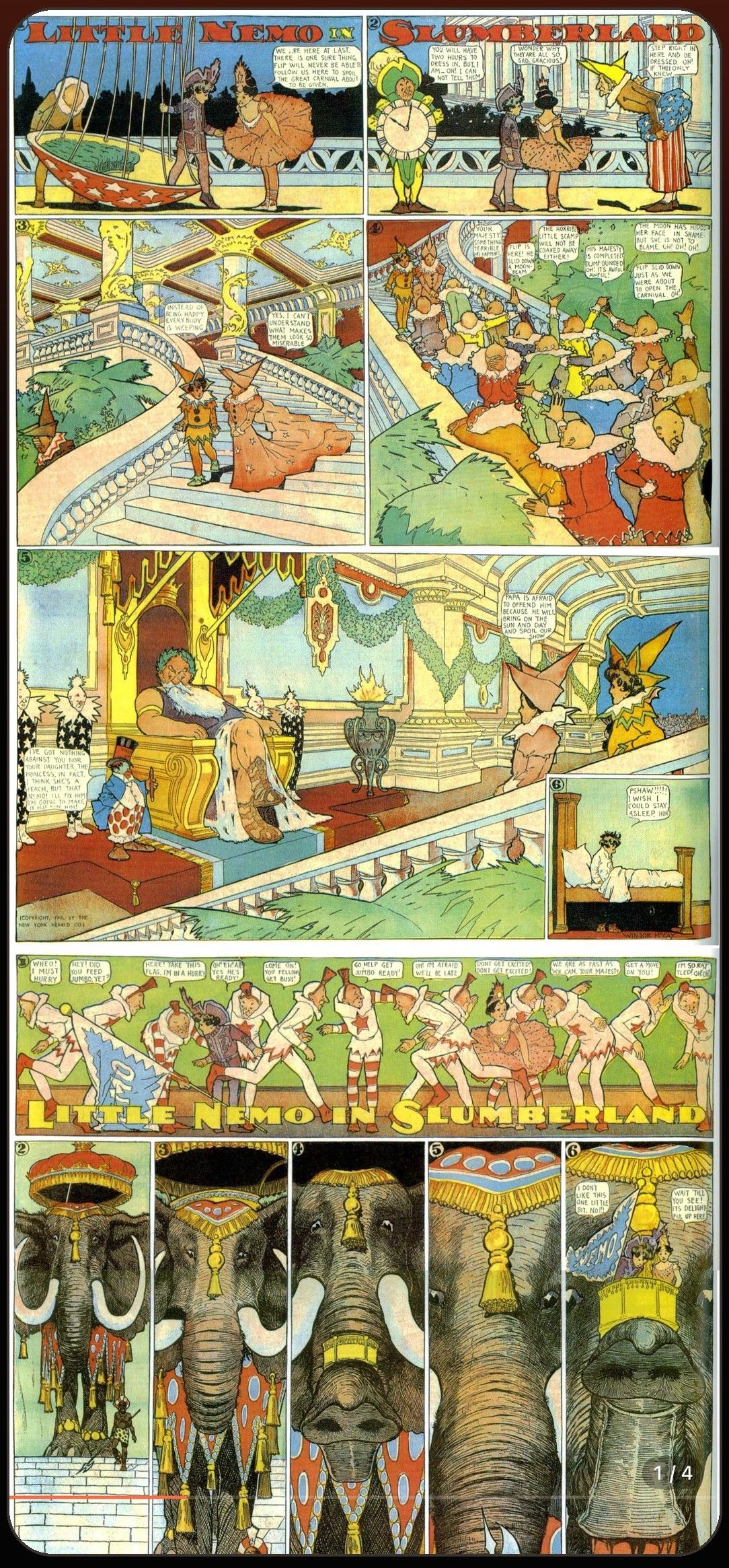
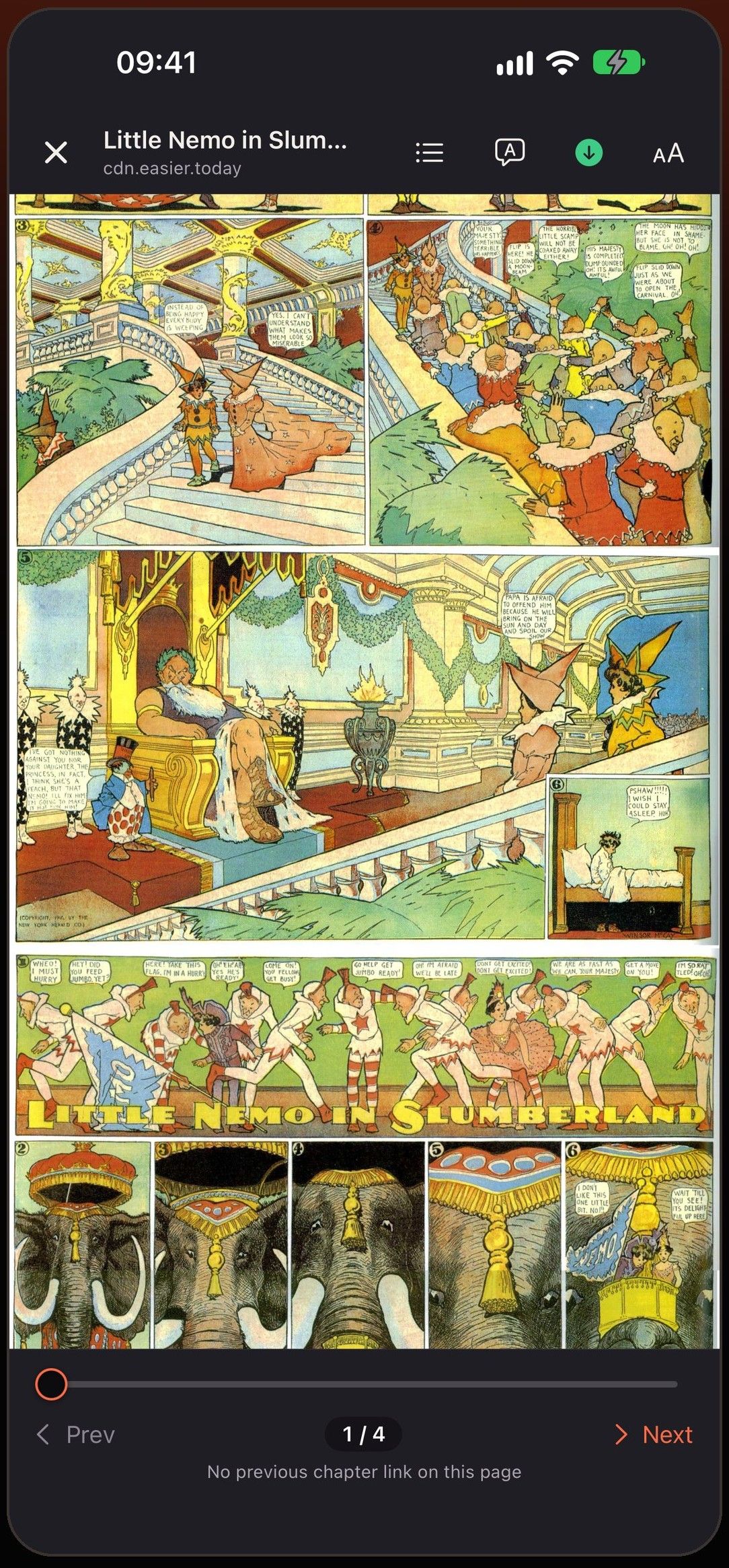
Pages ahead of you are loaded while you read, so turning a page or scrolling down doesn’t stop on a spinner. In vertical mode, the next chapter joins the bottom of the strip when you get near the end — keep scrolling and you are in it.
Previous and next chapter, and the site’s full chapter list, are one tap away without going back to the website.
Zoom for small lettering
Pinch or double-tap to zoom, in page mode and in the long strip. Useful for handwritten sound effects and small print on an iPhone screen. In page mode, blank borders around scanned pages can be cropped so the art fills more of the screen.
Built for long reading sessions
Tap the middle of the page to show or hide the controls; the rest of the time the screen is all comic. Choose a black, white or default background around the pages, and turn tap-to-turn on or off in page mode.
A long strip of 100 tall webtoon images stays smooth because pages are loaded and released as you move through them, instead of the whole chapter sitting in memory the way a web page does.
Picks up where you stopped
Mieru remembers the page you were on in every series, on every site. Open the app, tap the series in your library, and you are back on that page — even if you last read it offline.
Questions
Is Read Mode the same as Safari’s Reader view?
No. Safari’s Reader view is made for articles and leaves comic pages as they are. Mieru’s Read Mode finds the chapter’s images, including ones a site loads as you scroll, and shows them in a reader built for comics.
Does Read Mode work on every site?
It works on most chapter pages without any setup. If a page you read isn’t recognized, email us the address and we will look at it; site support is updated without an app update.
Can I read manga right to left?
Yes. Pages right to left is built in, and it is picked automatically for Japanese manga.
Can I use it on iPad?
Yes. Mieru runs on iPhone and iPad.
More in Mieru
Just the pages, on every site
Coming soon to the App Store