
How to download manga to read offline on iPhone
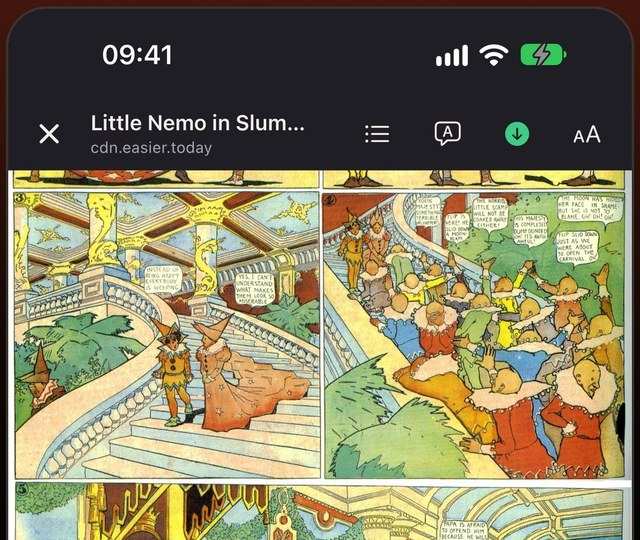
Planes, subways and bad hotel Wi-Fi are where a backlog of chapters would be most welcome, and where manga sites stop working. Here is how to keep chapters on your iPhone, and what to watch for in apps that promise offline reading.
What makes offline reading trustworthy
Reviews of reader apps keep repeating the same complaints: downloads that expire after a few days, chapters missing half their pages, downloads that stop when the app goes to the background, and no way to download a whole series at once. A good setup avoids all four.
Download chapters in Mieru
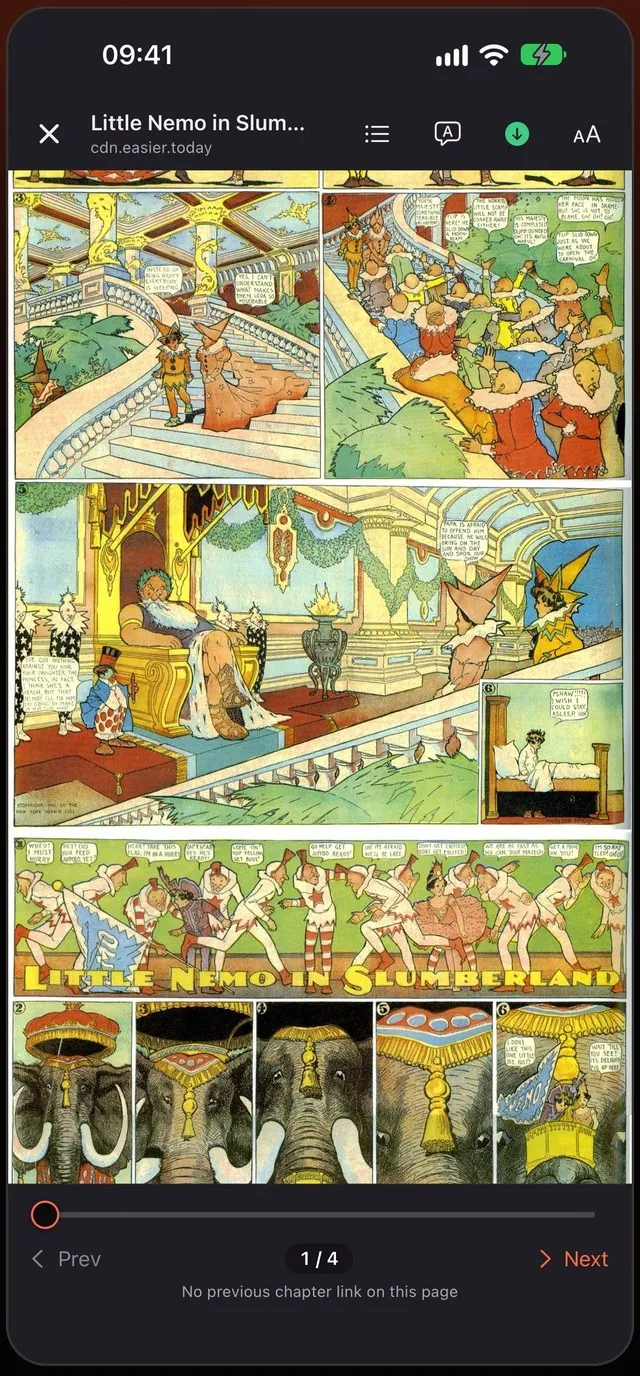
- Open the series’ chapter in Mieru and tap Read.
- In the reader, tap the download button — for this chapter only — or open the chapter list and choose the next 5, the next 10, or all of them.
- Keep reading or switch apps. Downloads continue in the background, and you can pause, resume or cancel them from Downloads.
Downloads use the same session as the site in the browser. Chapters that need you to be logged in, or that sit behind a Cloudflare check you already passed, download the way they open.
Wi-Fi only, if you want
Turn on Download over Wi-Fi and long queues wait for Wi-Fi instead of spending your mobile data. Downloads shows the total size and the size of each series.
They never expire
A downloaded chapter stays on your iPhone until you delete it. If the site removes the chapter or goes offline, your copy is still there. Deleting a chapter frees its space and keeps your reading progress.
Translate offline too
If you read raws with translation on, it works offline once the language is downloaded: detection and translation run on the device, so a downloaded Korean chapter can still be read in English on a plane.
Your library comes with you
Every series you read, on every site, sits in one library with its progress and bookmarks. Series with new chapters are marked when you open the app.
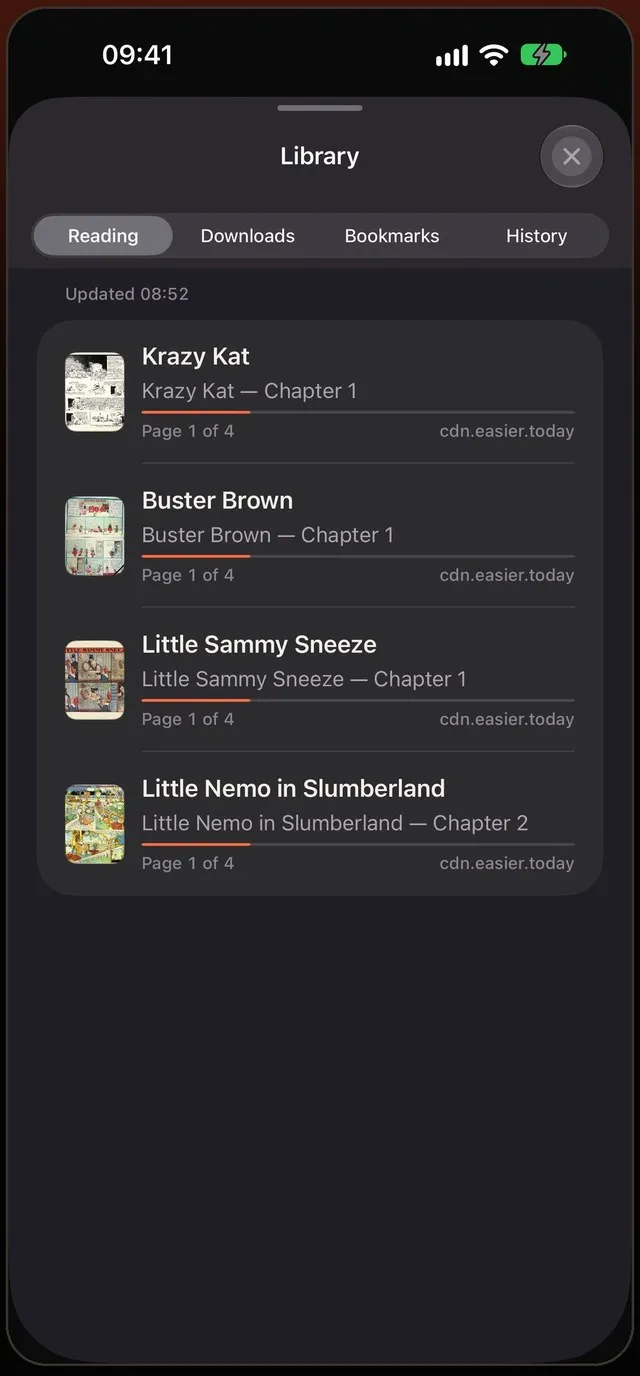
Mieru saves a backup of the library every day and keeps the last seven; point it at a folder in iCloud Drive and a copy survives even if you delete the app.
A checklist before a flight
- Download on Wi-Fi the night before. Turn on “Download over Wi-Fi” and queue the next 10 chapters of each series you are reading.
- Open Downloads and wait for the queue to empty. Chapters show as downloaded when every page is on the phone.
- Download the translation language. If you read raws translated, translate one page while you are still online so iOS has the language pack.
- Keep Mieru in the app switcher. Downloads continue in the background, but if you swipe Mieru away, iOS stops them until you open it again.
How much space does it take?
It depends on the site: a chapter of compressed web images takes a few megabytes, and long full-colour webtoon chapters can take much more. Instead of guessing, look at Downloads — it shows the total and the size of every series, so you can clear finished series with a swipe.
Downloads vs cache
Pages you read online are kept in a short-lived cache so going back a few pages is instant, but the cache is cleared as it fills up. Downloads are different: they are stored as chapters, listed in the library, and stay until you delete them.
If a download fails
A chapter that downloaded only partly shows an orange badge in the library. Open it online and tap download again to fetch the missing pages. If a site blocks downloads outright, reading online in Read Mode still works.
Offline and library — Downloads that never expire, one library for every site.
 Coming soon to the App Store