
How to auto-translate manga pages — including vertical Japanese

Translating one screenshot at a time works for a single panel. For a whole chapter it is a chore: capture, switch apps, read, switch back, scroll, repeat. Automatic translation does the same job for every page of the chapter while you read, and leaves the translation where the words were.
This guide covers how automatic translation works in Mieru, how it handles Japanese vertical text, and how to get the best results.
Turn it on for a site
Open a chapter, tap Read, and when Mieru asks how to translate this site, choose Translate automatically. From then on every chapter you open on that site is translated as it loads.
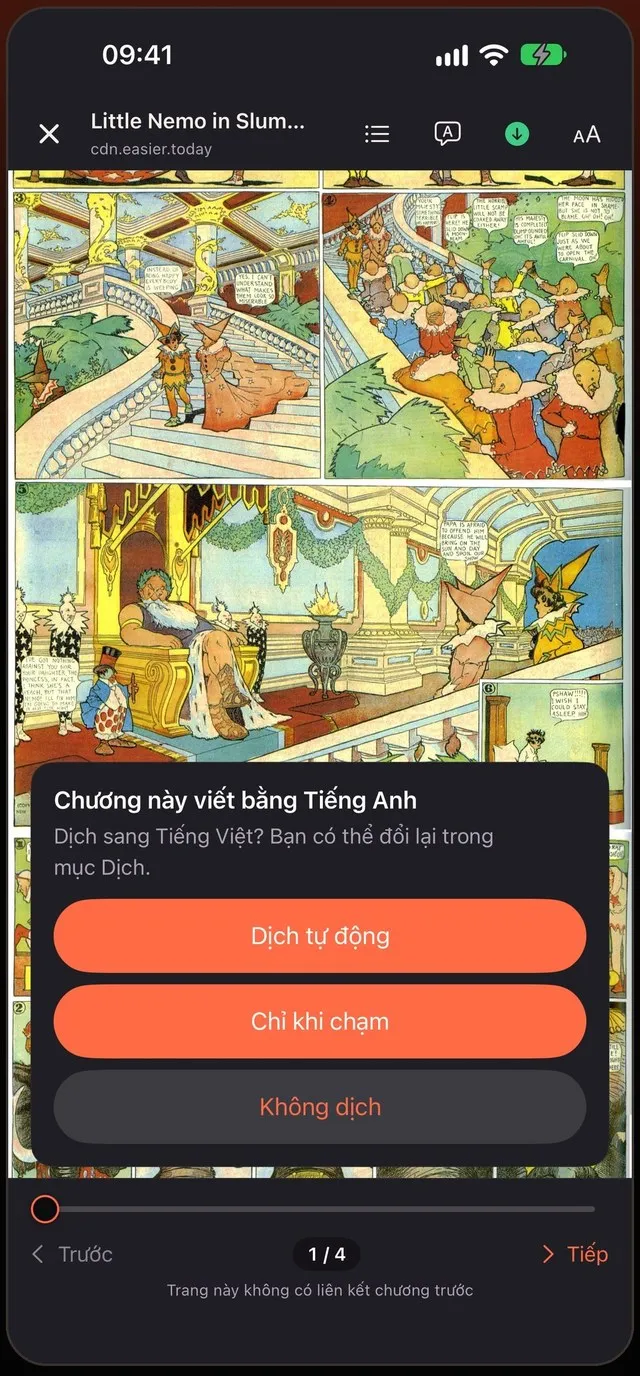
You can change it any time from the translation sheet in the reader — for example, switch a site you read in the original language to Only when I tap.
What “automatic” actually does
- The page on screen is translated first, then the pages closest to where you are reading, ahead of you before behind you.
- One page is processed at a time in the background, so scrolling never waits on it.
- When you pass about 80% of a chapter, the first three pages of the next chapter are queued at low priority, so they are ready when you get there.
- If a page fails — the image didn’t load, the connection dropped — it is retried twice. After that it is marked Not translated and a tap retries it.
Japanese: vertical text and manga lettering
Japanese manga is written in vertical columns, read right to left, and general text recognition does badly on it. Mieru uses a separate reader trained on manga lettering for Japanese pages. It is a one-time download the first time you open a Japanese page with translation on; after that it runs on the device like everything else.
Japanese chapters also open in right-to-left page mode automatically, so the layout matches the book.
Korean and Chinese
Korean manhwa and Chinese manhua are usually horizontal text in a long vertical strip. Mieru detects each bubble, reads the lines inside, and writes the translation back with a size and weight that follow the original lettering. Very tall strip images are read in overlapping bands, so long webtoon pages don’t lose text at the edges.

Getting better results
- Set the source language once if the site is mixed. Mieru works out a site’s language from the page; on aggregator sites with several languages, set “Translate from” for that site.
- Use the glossary for names. Tap a bubble, fix a character’s name, and the series glossary keeps it consistent on later pages.
- Download the language pack on Wi-Fi. The first translation into a new language may ask iOS to download it.
How a page is translated, step by step
- Find the bubbles. An on-device model marks speech bubbles and the text outside them — captions, narration boxes.
- Read the text. Korean, Chinese and English lines are read with Apple’s text recognition; Japanese uses the manga reader described above. Tall strip pages are read in overlapping bands.
- Group lines into sentences. Lines that belong to the same bubble are joined, so the translator sees whole sentences instead of fragments.
- Translate. Apple’s translation runs on the device with the source language set for that site.
- Letter it back. The text area is painted with the bubble’s own background colour, and the translation is set in a comic font sized and weighted to follow the original lettering.
Automatic or on tap?
Automatic is for raws you want to read straight through: every page is translated before you reach it. On tap is for sites you mostly read in the original — a learner who wants help with one line, or a reader who only needs the occasional word. In On tap mode, tapping a bubble shows the original and the translation side by side, and nothing else on the page changes.
Choosing a font
Translations are set in a comic lettering font that covers Vietnamese diacritics and most Latin languages; you can choose another bundled font, one from your iPhone, or import a .ttf or .otf file from Files.
Translate in the bubbles — Korean, Japanese and Chinese, on your iPhone.
 Coming soon to the App Store